
How to Export Your Data From Huckleberry (CSV, Step by Step)
Yes, Huckleberry exports a CSV. Where the button hides, how the file reaches you, the once-a-day limit, and how to move your history to another app.

Can you export data from Huckleberry? Yes. Huckleberry exports your full tracking history as a CSV file and emails a download link to the address on your account. The button sits at the very bottom of the Child tab, so it's easy to miss. You can export once every 24 hours.
We checked this walkthrough against Huckleberry's help centre in October 2026, and the screenshot is from June 2026. If a screen looks different after an update, the export is likely still under the same tab.
| Huckleberry's export | Detail |
|---|---|
| Where | Child tab, at the very bottom of the screen |
| Button | Export tracking data as CSV |
| How it arrives | A download link by email, to the address on your account; the link works for 24 hours |
| How often | Once every 24 hours |
| File type | CSV, one row per logged activity |
How to export your Huckleberry data
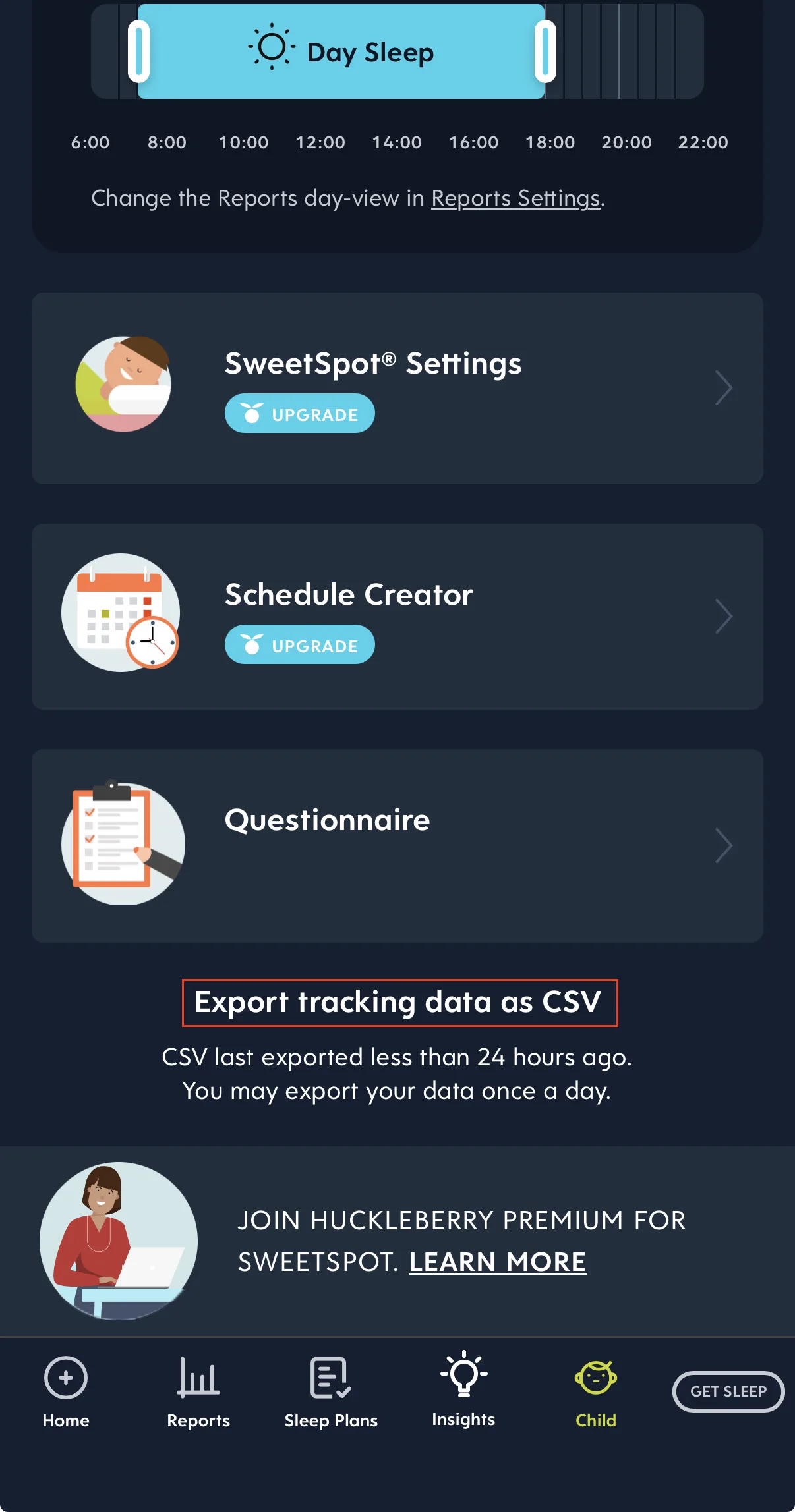
In Huckleberry, the CSV export sits at the very bottom of the Child tab:
- Tap Child in the bottom navigation.
- Scroll to the very bottom of the screen, past SweetSpot Settings, Schedule Creator and Questionnaire.
- Tap "Export tracking data as CSV."
- Tap "Got it! Email it" to confirm.
How the file reaches you
Huckleberry generates the file and emails a download link to the address on your account. Tapping the button downloads nothing to your phone. Check your inbox, and look in your spam or promotions folder too.
Email is a common route for full-history exports from mobile apps. A phone app can't always drop a file into a downloads folder the way a desktop browser can. Sending it to your verified account email is also a small privacy safeguard for your baby's health data.
Huckleberry's help centre says the link works for 24 hours, and you can request a new link once it expires. Download the CSV within that window and save the file itself somewhere you can open it again on your phone or computer.
The once-a-day limit
Huckleberry limits exports to once every 24 hours. After an export, the screen tells you so: "CSV last exported less than 24 hours ago. You may export your data once a day."
The limit matters most mid-switch. Stop logging in Huckleberry first, then export, so the file ends with your last entry. From that point, log only in the new app. Anything you add to Huckleberry after exporting stays out of the file until you can export again the next day.
What's in the CSV
The export is a standard CSV (comma-separated values) that opens in Numbers, Excel or Google Sheets. It holds one row per logged activity: feeds, sleeps, nappies and so on.
Before you rely on it, check that the date range covers your full history, especially if you've tracked since the newborn days. Spot-check the oldest and newest rows so you know nothing's missing.
Common reasons to export
- Switching to another tracker and bringing your history with you.
- Keeping a backup of your own data, independent of any one app.
- Sharing with a professional, such as a GP, child health nurse, paediatrician or lactation consultant who wants to see patterns.
Still choosing where to go? Huckleberry alternatives sets out other trackers and who each one suits. Switching from Nara instead? The same walkthrough exists for that app: export your data from Nara Baby.
Not ready to switch yet? Export anyway. Once you've downloaded and saved the CSV, the history is yours to keep as a backup, share with your nurse or GP, or bring into a new app later.
Importing Huckleberry data into another app
A Huckleberry CSV goes straight into a new app only when that app reads Huckleberry's columns. Otherwise the file needs reshaping into the new app's own import layout first. Check the new app's import help before you start, and keep the downloaded file unedited as your original copy.
After any import, compare the oldest and newest entries in the new app with the Huckleberry file. That tells you the whole date range came across.
Moving your history to BabyLog
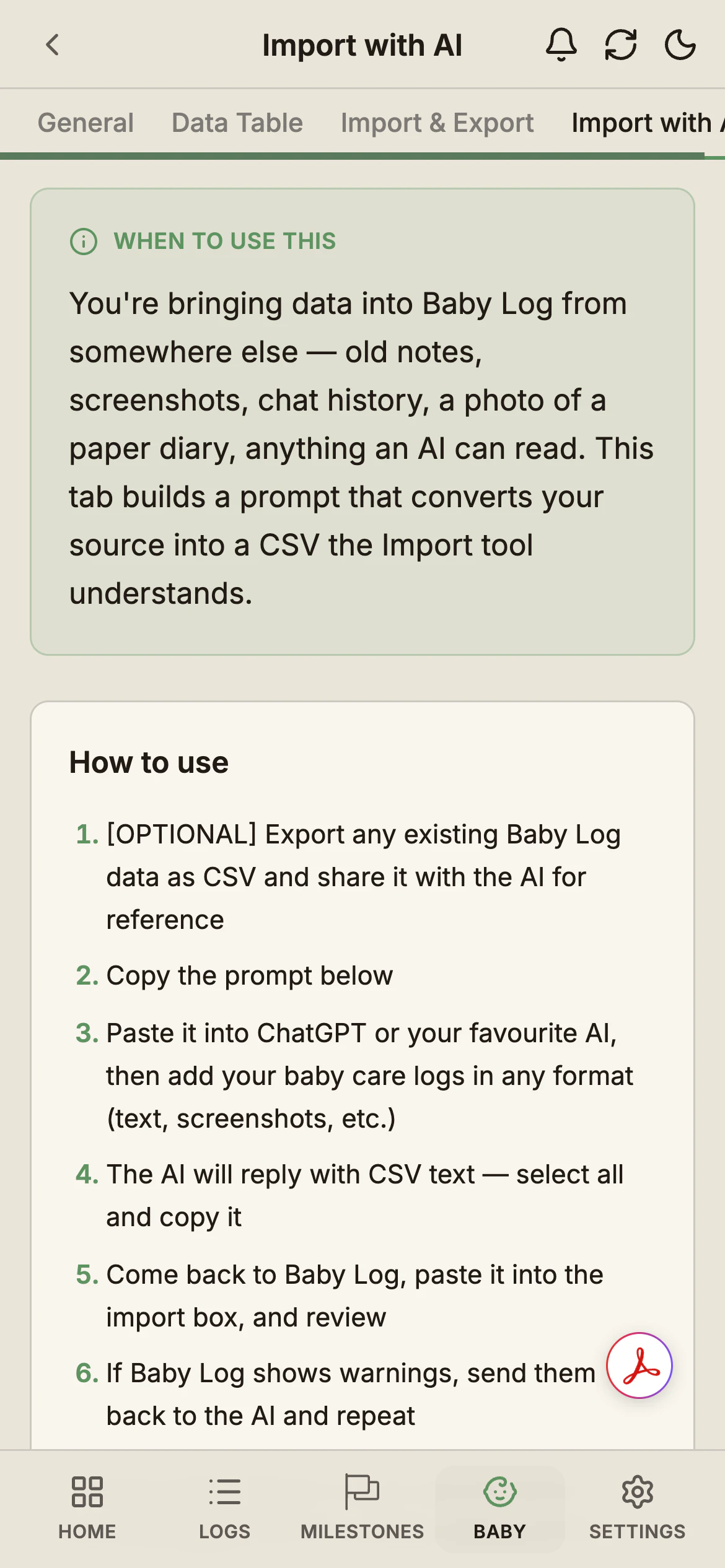
We make BabyLog, so this section describes our own app. BabyLog imports CSV in its own column layout and has no built-in Huckleberry mapping. The Import with AI tab gives you a ready-made prompt for the conversion: ChatGPT or Claude uses it to reshape the Huckleberry file into BabyLog's layout.
The switch, step by step
- Export from Huckleberry. Tap Export tracking data as CSV, as above.
- Set up BabyLog while the email arrives. Start free in your browser and add your baby. There's no card, and setup takes about two minutes.
- Copy the prompt. In BabyLog, open Baby → [your baby] → Data → Import with AI and copy the prompt.
- Convert the file. Paste the prompt into ChatGPT or Claude, then add your Huckleberry CSV. For months of history, ask the AI for a downloadable CSV file.
- Import and review. Open the Import & Export tab, then paste the result or upload the file. BabyLog shows a preview before anything is saved. If it lists warnings, send them back to the AI and try again.
- Spot-check both ends. Compare your baby's first few days and the newest entries with the Huckleberry file, and check that every type of entry you logged came across.
Before you import
The conversion runs in your own AI assistant, so the file's contents go to that service. To keep the file out of an AI tool, reshape it by hand in a spreadsheet, using a small BabyLog export as the template.
Import as the baby's owner. A caregiver with editor access can import only the first 50 entries of a file.
Re-running an import is safe: BabyLog treats two logs of the same type at the same time as one event, so rows that already landed are skipped. The import and export guide covers each screen, including large imports.
What you'll see afterwards
Everything you import stays in BabyLog on the free plan. The Data Table shows every entry with no time limit, and you can edit or delete any of them.
Summary, Calendar, Timeline and Compare go back 14 days on the free tier; the paid plan opens the full history. Try Pro to see months of Huckleberry history in Calendar and Compare.
Still deciding between the two apps? The BabyLog and Huckleberry comparison covers sleep support, logging effort, sharing and data export side by side.
Common questions
Ready to start tracking?
BabyLog works on any device — iPhone, Android, tablet, or desktop. Setup takes two minutes.
Keep reading

BabyLog vs Huckleberry: Which Baby Tracker Suits Parents in Australia?
A fair side-by-side comparison of BabyLog and Huckleberry — sleep support, daily logging effort, reviewing the day, caregiver sharing, offline use, data export and pricing — for families parenting in Australia, deciding between them.

Best Baby Tracker Apps in Australia (2026)
A fair overview of popular baby tracking apps for parenting in Australia — Huckleberry, Glow Baby, Nara Baby, Baby Daybook, BabyConnect, Feed Baby, Talli Baby, Sprouty and BabyLog — and which one tends to suit which household.