
Getting Started
Install BabyLog, create your account, add your first baby, and log your first activity.
BabyLog takes about two minutes to set up. By the end of this guide you'll have BabyLog installed, an account, a baby profile, and your first log saved.
1. Open BabyLog
You can use BabyLog three ways — pick whichever fits your phone:
- Install it to your home screen (recommended on iPhone and Android) — it opens full-screen with its own icon, sends push reminders, and stays fast even offline.
- Download the iOS app from the App Store, if you prefer the native install or want Sign in with Apple.
- Just use the website — open babylog.com.au in any modern browser, on any device.
The step-by-step walkthrough for each platform — with screen recordings — lives in the Install Guide.
2. Sign in or sign up
Tap Start free on the landing page. Sign up with:
- Google account — fastest on most phones
- Apple ID — recommended on iPhone
- Facebook — if that's where you live
- Email + password — works anywhere
BabyLog uses Clerk(opens in a new window) for authentication. Your password is handled entirely by Clerk; BabyLog never sees it.
3. Create a baby, or join one
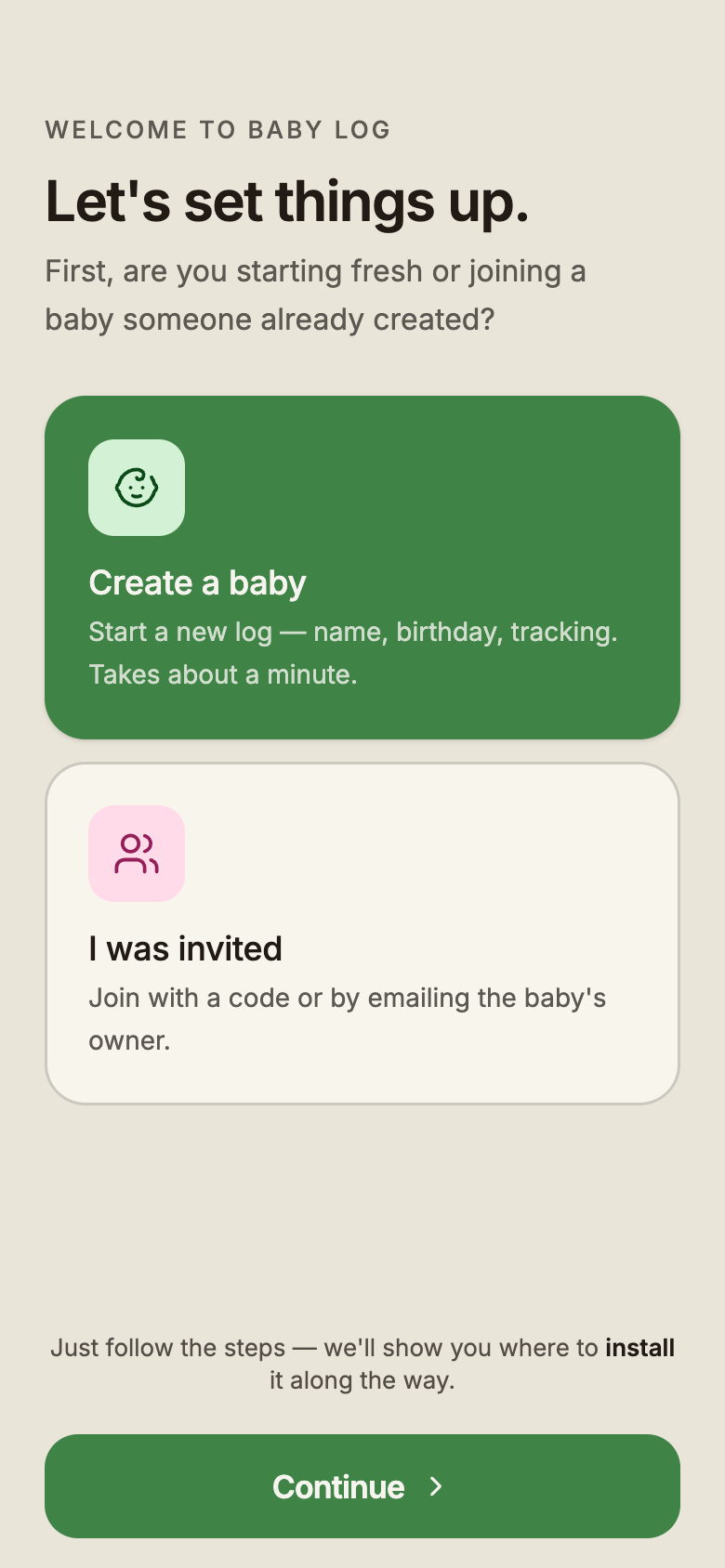
The first setup screen asks you to pick a path:
- Create a baby — for primary caregivers setting BabyLog up fresh. You'll enter your baby's name and birthday and pick a few details.
- I was invited — for partners, grandparents, and nannies joining a baby someone else set up. Enter the 6-digit code the baby's owner shared with you, or the owner's email to ask for access. If they sent you an invite link, just open it. See Sharing for what each role can do.
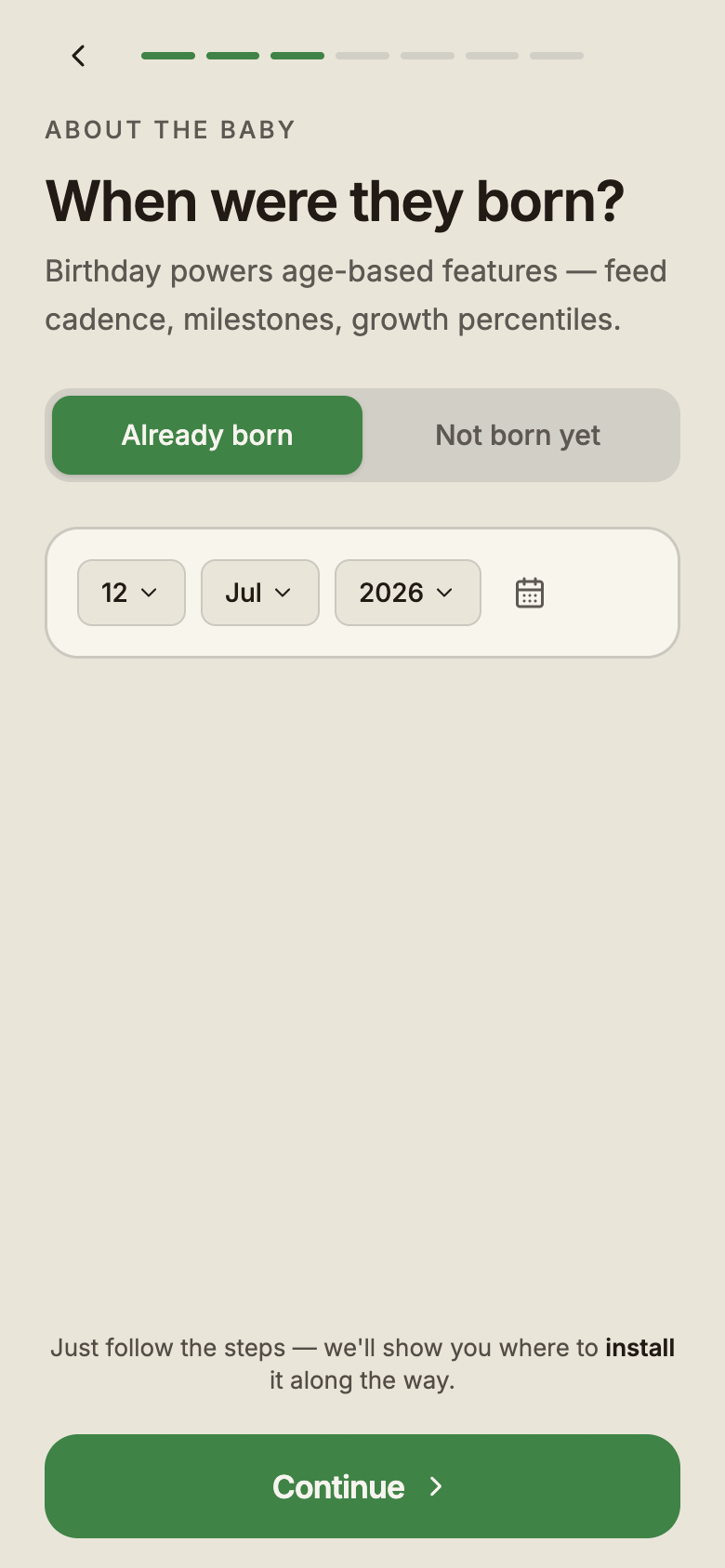
If you create a new baby, you'll fill in:
- Name — what BabyLog calls them throughout the app
- Birthday — used for age and growth percentiles. Expecting? Switch to Not born yet and enter the due date instead.
- Your relationship — mum, dad, grandparent, nanny, etc. This becomes the caregiver label shown on your activity in the shared log.
- A few more details — all optional: birth weight, sex (for WHO growth curves), and your day/night boundary times.
Finish the wizard and the baby profile is created. If you have CSV data from another tracker, you can import it at any time after this step.
4. Tell us how you heard about BabyLog
Near the end of setup, one screen asks how you found the app: Google search, social media, an AI assistant, a friend or family member, or somewhere else. Pick the closest match and tap Continue. It helps us understand which channels actually reach new parents. The iOS app skips this screen.
5. Pick what you'll track
BabyLog has twelve log types. Most newborn parents don't use all of them on day one. The setup wizard offers a curated default — feed, sleep, nappy, growth, and notes — and lets you switch on the rest in a single tap each.
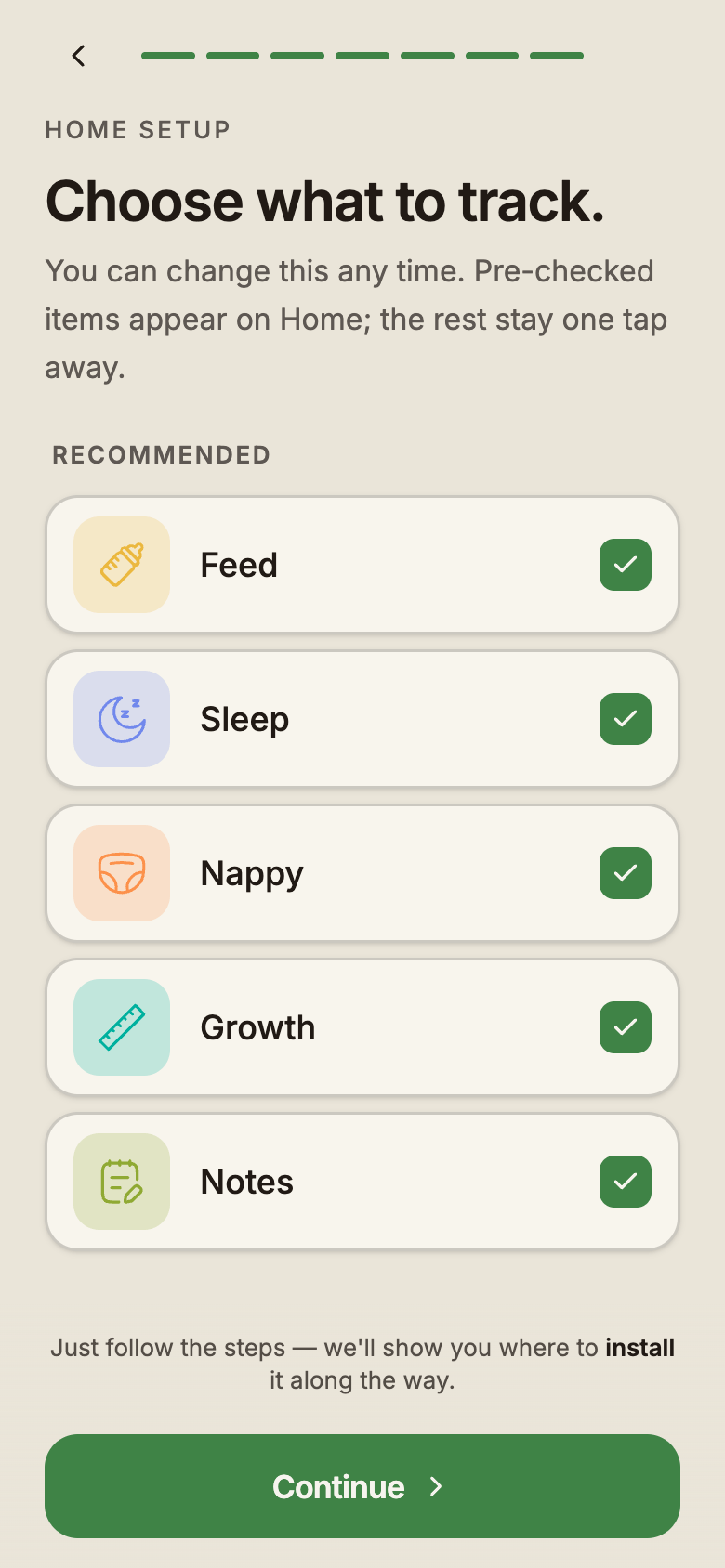
You can change this any time in Customising Overview. Hidden log types stay in the data; they just don't clutter the Home screen.
6. Log your first activity
From the Home screen, tap the + on any log-type tile — each tile opens the log form for that activity. Fill in the relevant fields and tap Save.
- The log appears immediately on the Home screen and the Timeline.
- Sync to other caregivers happens in the background as soon as you have a connection.
- If you're offline, the log saves locally and sync catches up when you're back online.
A walkthrough of each log type and its fields is in Log Types.
7. Invite your partner
Once you've added a baby, share access with anyone else who looks after them.
Open the Baby tab, pick your baby, then Sharing & Access. Choose a role first, then either Generate Code — a 6-digit code, handy for in-person sharing with someone who already has an account — or an invite link for someone who hasn't signed up yet. You also choose how long it stays valid: 1 hour, 1 day or 7 days. The roles:
- Editor — can view, log, and edit. Use for co-parents and primary carers.
- Viewer — can view only. Use for grandparents or family who want to stay informed.
The full sharing flow — codes, approvals, role changes, revoking access — is documented in Sharing.
Where to go next
- Read Log Types for what every activity tracks
- Read Viewing Your Data for Timeline, Calendar, Summary, and Compare
- Read Time Slider for everything except the "log it now" path
- Read Sharing to set up your full care team