
Install Guide
Install BabyLog on your iPhone or Android home screen as a PWA, or get the iOS app from the App Store.
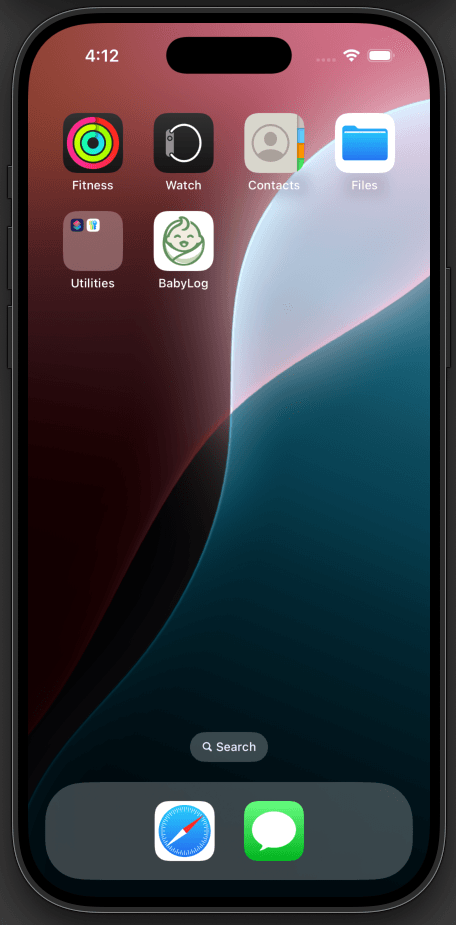
BabyLog is a Progressive Web App (PWA). You install it directly from your browser — no app store needed — and it opens full-screen from your home screen with its own icon. On iPhone, there's also a native App Store version if you'd rather install that way.
Why install at all?
You can use BabyLog without installing — just open babylog.com.au in a browser. But installing the PWA (or the iOS app) gives you:
- A home-screen icon with no browser chrome
- Push notifications for reminders and caregiver activity
- Faster cold-starts (assets cached on your device)
- Full-screen layout that respects the iPhone safe area
- Better offline behaviour for browsing your existing logs
Install on iPhone and Android
Install straight from your browser — no app store needed. Each platform's recording shows the exact taps, with the steps written out beside it.


On iPhone, use Safari — the install option lives in the Share menu. On Android, use Chrome. Once installed, BabyLog opens full-screen from your home screen — no tab bar, no URL bar.
Install on iPhone (App Store)
If you'd rather install the native way, BabyLog is also on the App Store. Search BabyLog in the App Store and tap Get.
The App Store version is the same BabyLog wrapped natively. Same features, same sync, same data. Pick this path if:
- You want Sign in with Apple (the most polished iOS sign-in)
- You manage installs through the App Store (Family Sharing, parental controls)
- You'd prefer iOS-style update notifications
Subscriptions purchased on the iOS app are billed through Apple. On the PWA, subscriptions go through Stripe directly. Both unlock the same Pro features.
When your connection drops
Once you've signed in and the app has loaded once, BabyLog stays usable if you temporarily lose your connection.
Works offline
- Viewing the Home screen, Timeline, Calendar, Summary, and Compare
- Reading any log entry
- Navigating between screens
- Logging new entries — they're saved locally and queued for sync
Needs a connection
- First-time sign-in
- Receiving new logs from other caregivers
- Cloud sync of your own logs (queued offline, flushed automatically when you're back)
- Push notifications
When your connection comes back, the app syncs automatically. The sync icon in the top-right shows the current state — a red dot means there's something queued.
Keeping the app up to date
BabyLog updates itself in the background — new versions are picked up automatically and load the next time you open or refresh the app. There's nothing to download manually.
The iOS App Store version follows the App Store's normal auto-update rules; turn auto-updates on in iOS Settings if you'd like new versions to land without you tapping anything.
Uninstalling
To remove the PWA, long-press the home-screen icon and tap Delete app (iOS) or Uninstall (Android). Your account and your logs stay safe on the cloud — sign back in on any device and they're there.
To remove the iOS App Store version, delete it the same way you'd delete any App Store app. Again, your data is untouched.
To delete your account along with all logs, see Privacy, Data & Sync → Deleting your account.