
Viewing Your Data
BabyLog has one place to log and five places to look back: Home, Timeline, Calendar, Summary, and Compare. Pick the view that matches the question you're trying to answer.
Home
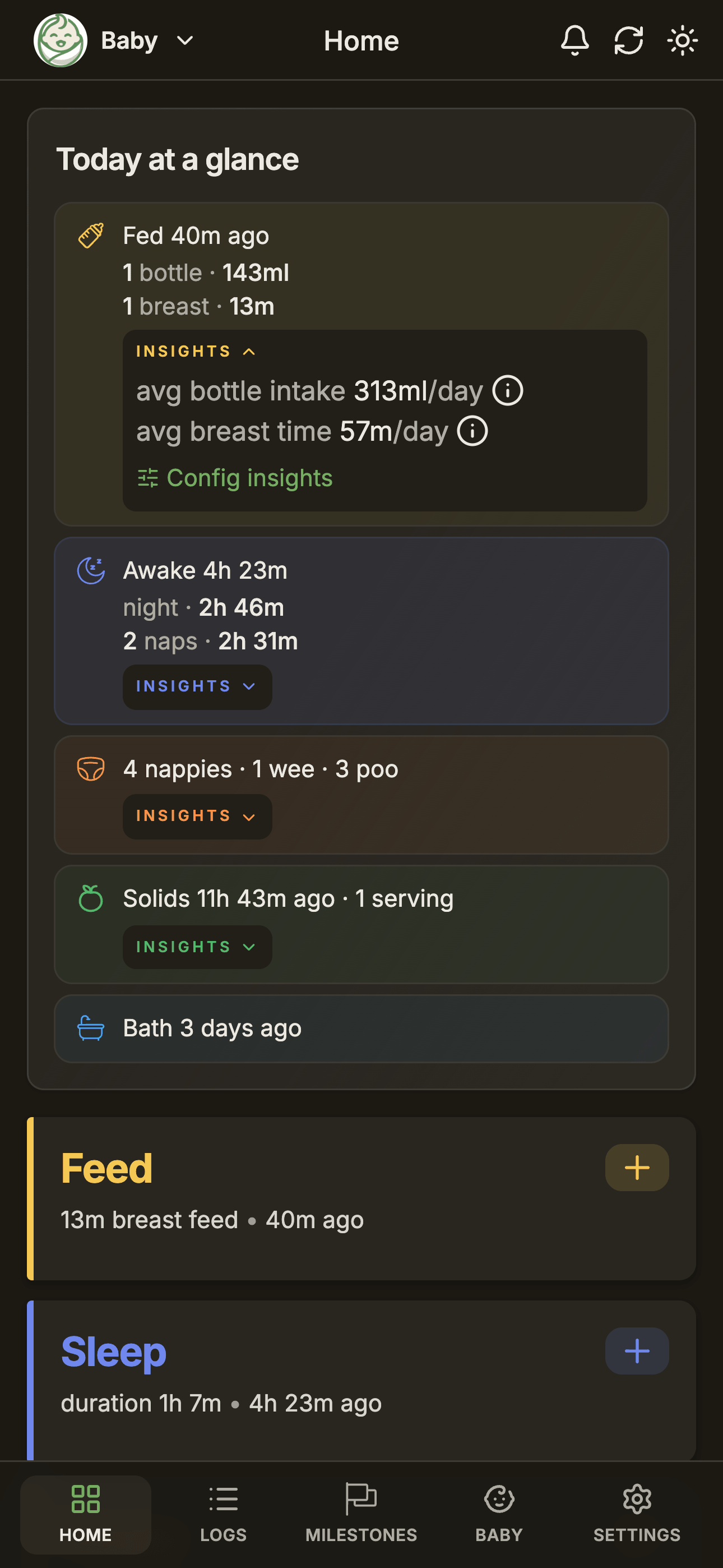
The Home screen is the at-a-glance status of the baby right now. Each tile shows the most recent entry for that log type, the time since it happened, and (where useful) an estimate of what's coming next.
- Tap a tile to open the log modal for that type.
- Use the More options tile to reorder tiles and hide the types you don't use. See Customising Overview.
- The sync indicator in the header shows whether everyone in the care team is up to date.
Home reads from your device's local cache, so it appears instantly when you open the app — even offline.
Timeline
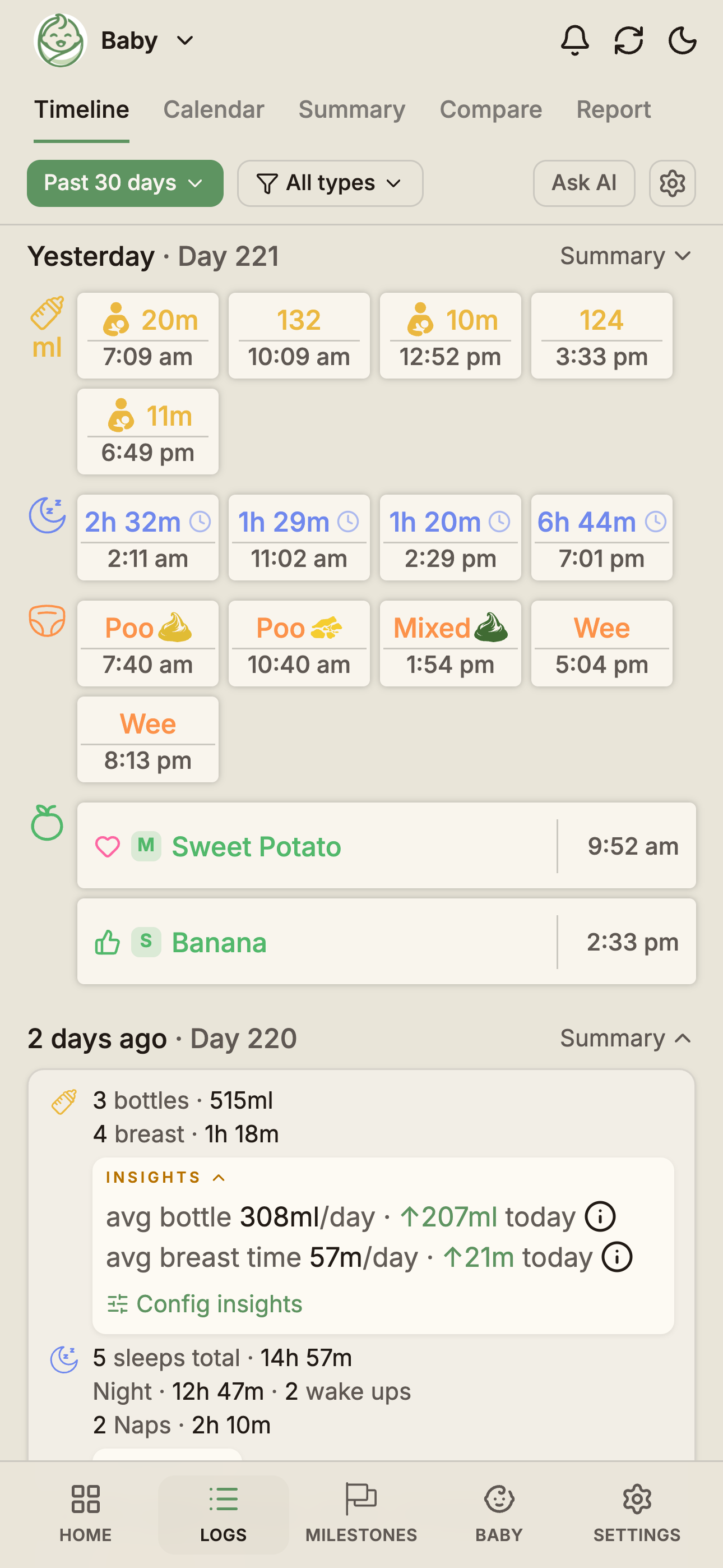
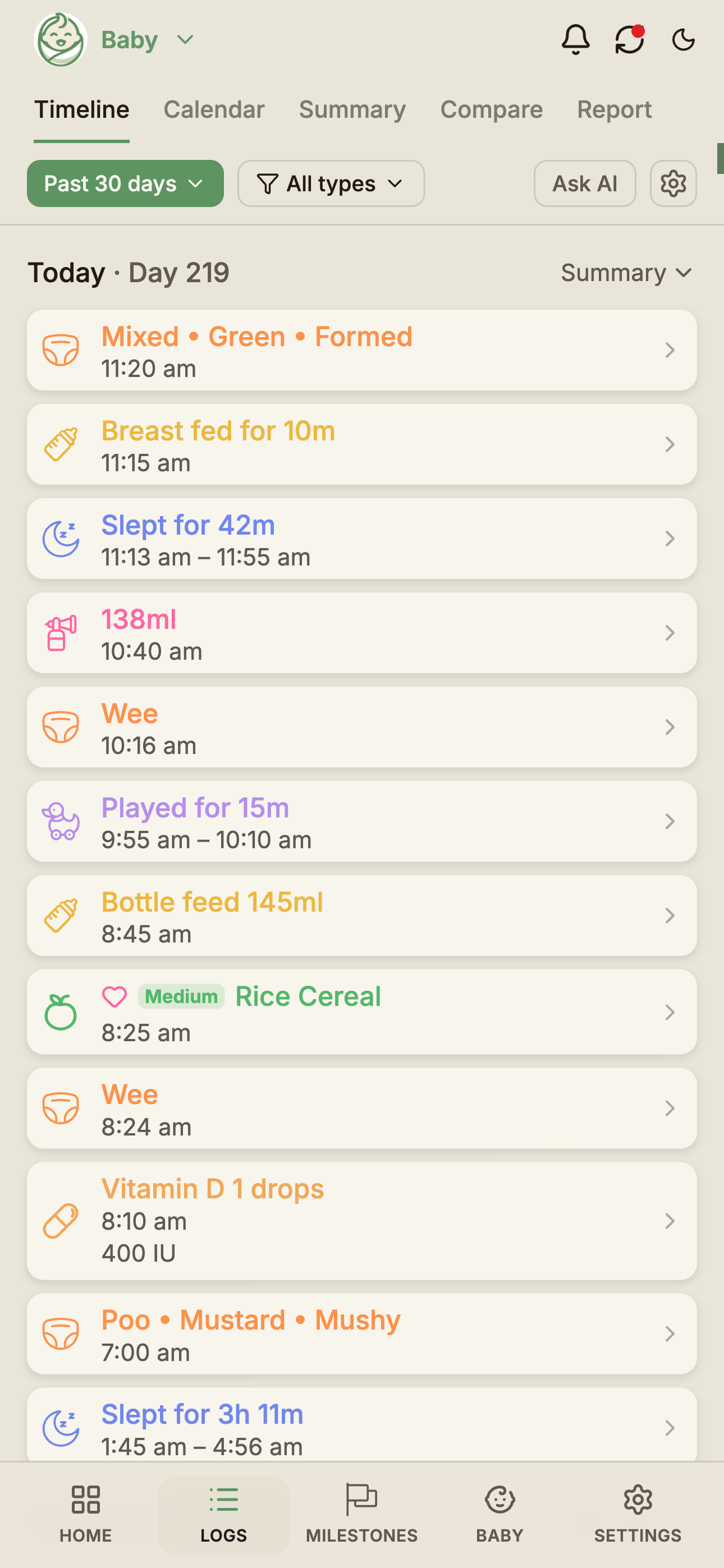
A reverse-chronological list of every log, grouped by day. Each day header shows the date and your baby's age in days.
Two layouts
- Cards — generous spacing, colour-coded by type, easy to scan from across the room.
- List — one line per log, denser, faster to scroll a week of data.
Switch with the settings button in the Timeline's filter row.
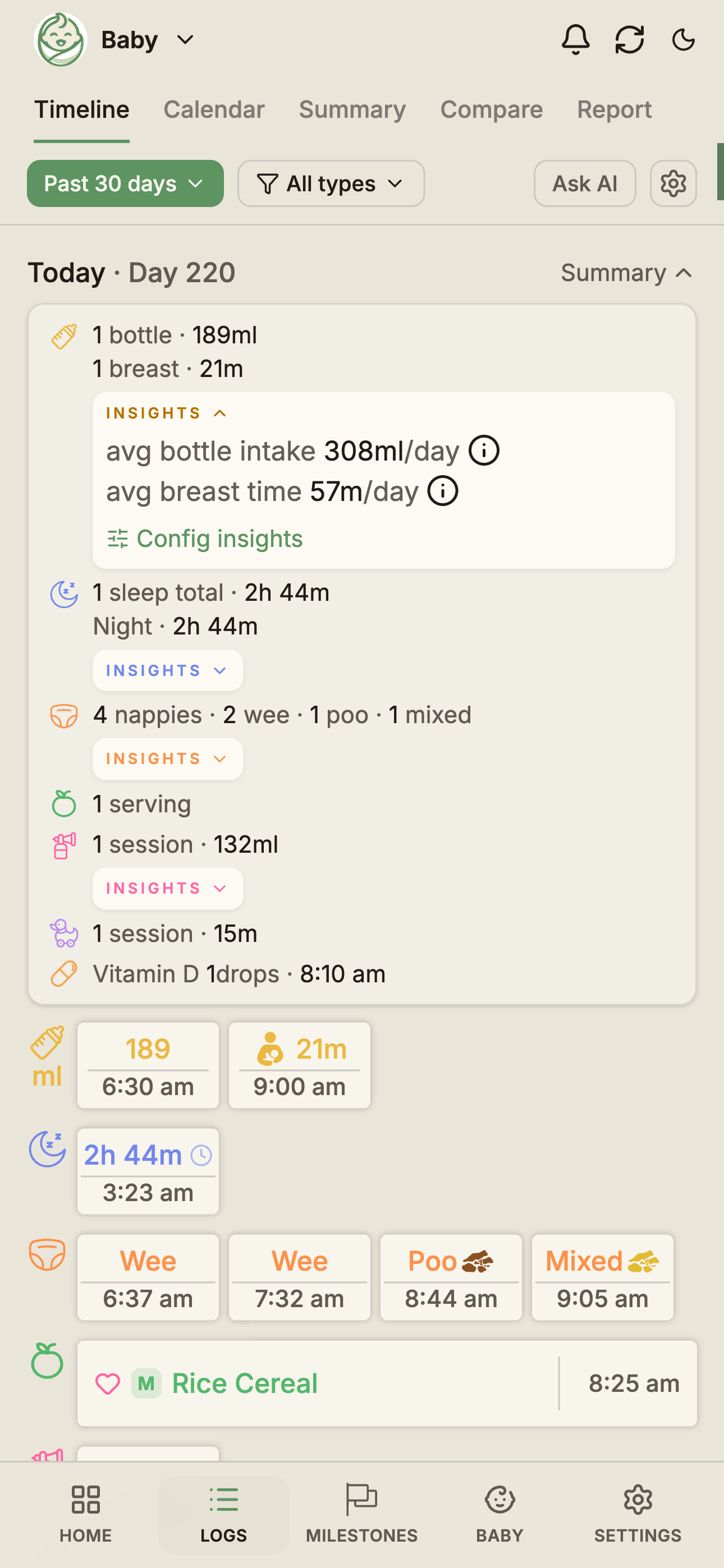
Daily summary on every day header Each day header has a Day summary button — tap it to expand a one-row summary for that day: total feed ml, total sleep, nappy count, and so on. Useful when you need to answer "did she eat enough yesterday?" without leaving the Timeline.
Editing and deleting Tap any log row to open it for editing. Delete is available from inside the edit form. Edits and deletes sync to every caregiver like any other change.
Calendar
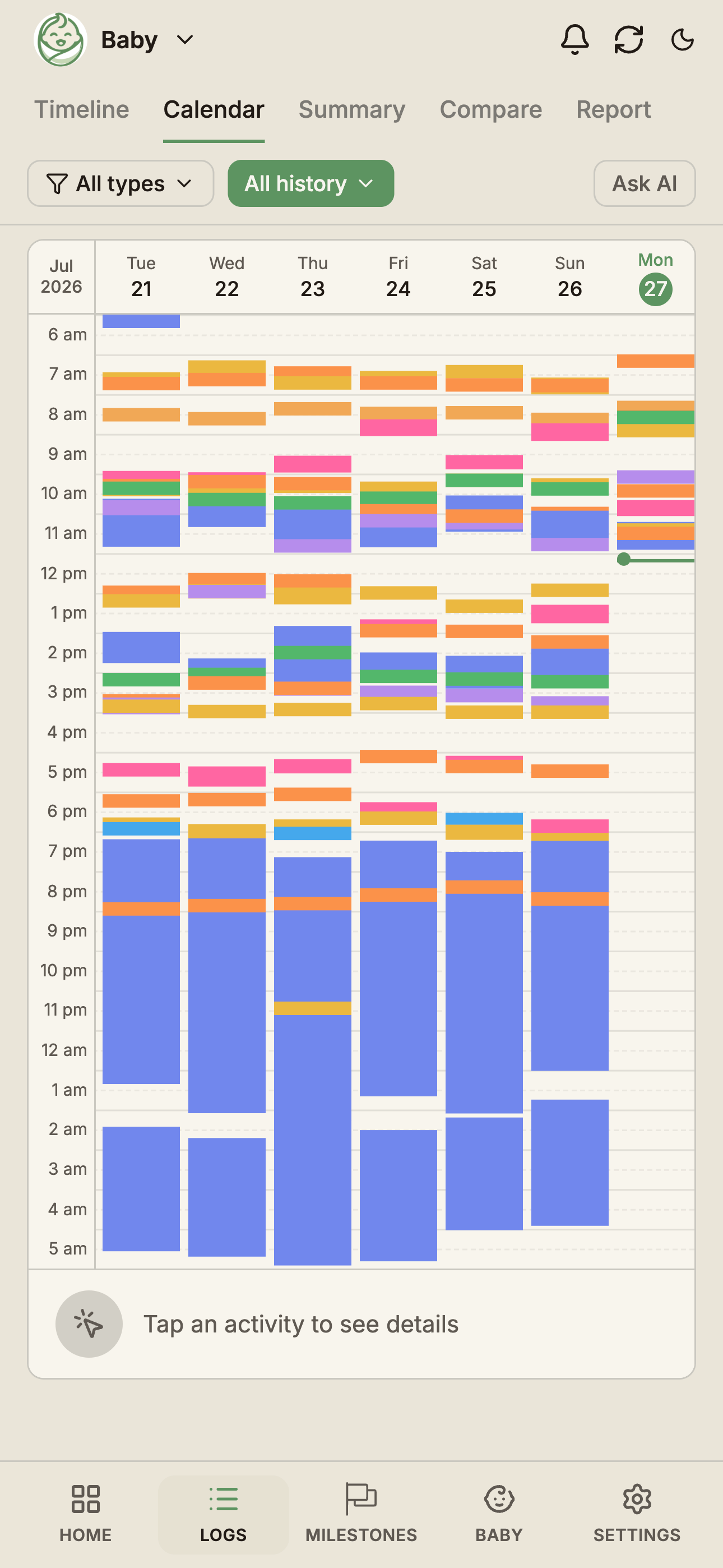
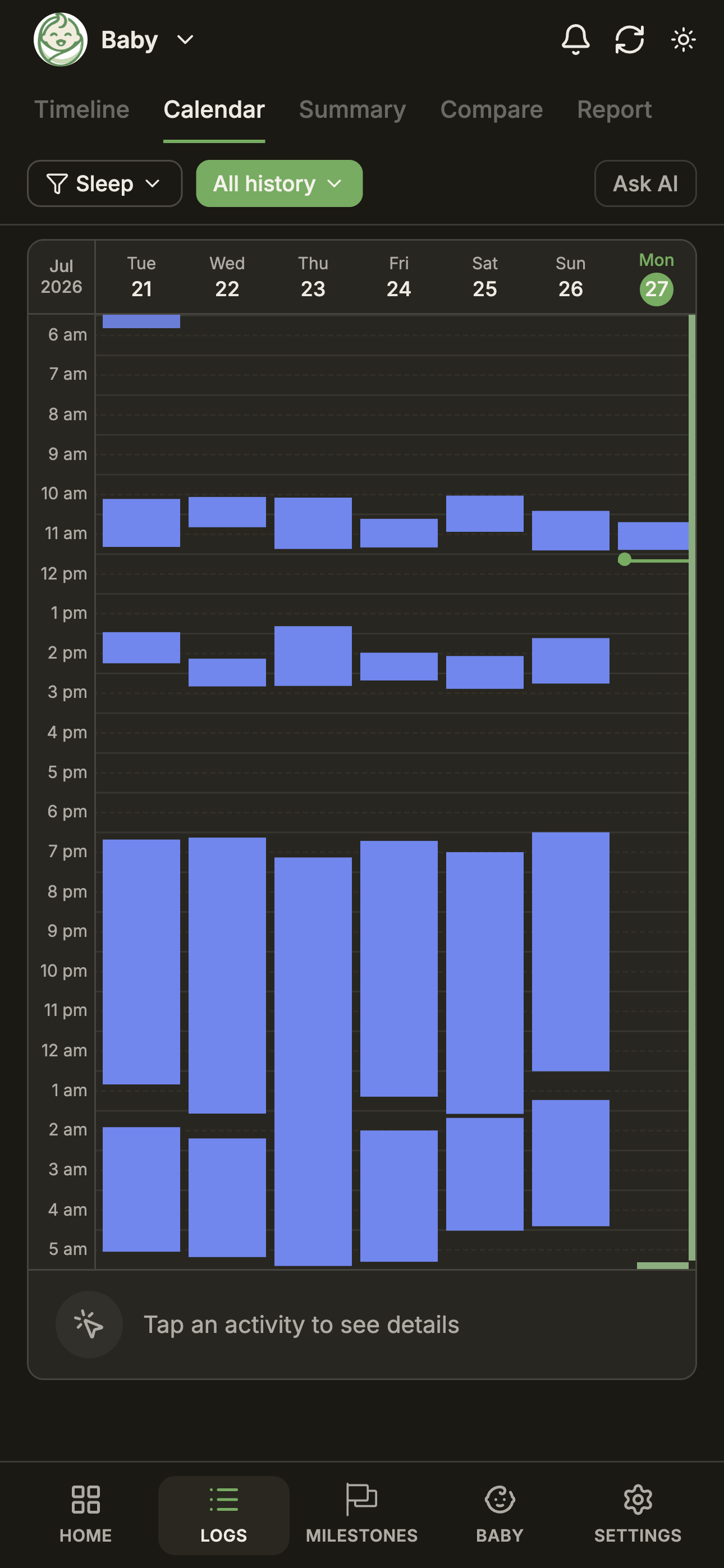
A timeline grid showing logs laid out by time of day. The Y axis is 24 hours; each column is a day, and you scroll sideways through as many days as you have history.
This is the view for spotting routines. Things you can see at a glance:
- All types — every log as a coloured block; routine clusters jump out.
- Sleep only — vertical bars for night and day sleeps; gaps and shifts are obvious.
- Feed and solids — feed times across the week; a shifting schedule is visible.
Use the type filter at the top of the Calendar to focus on the types you're studying this week — any combination works — and swipe back through earlier days to compare.
Summary
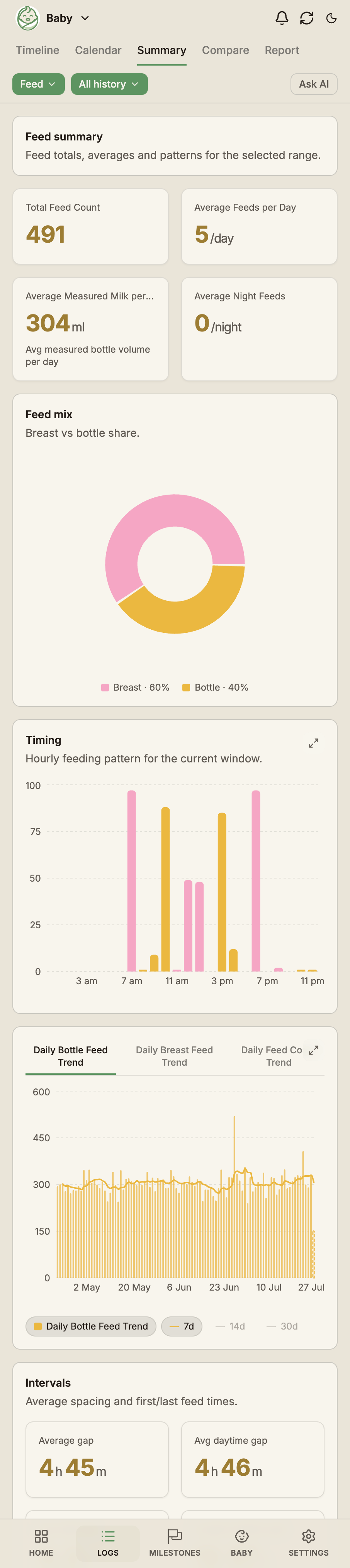
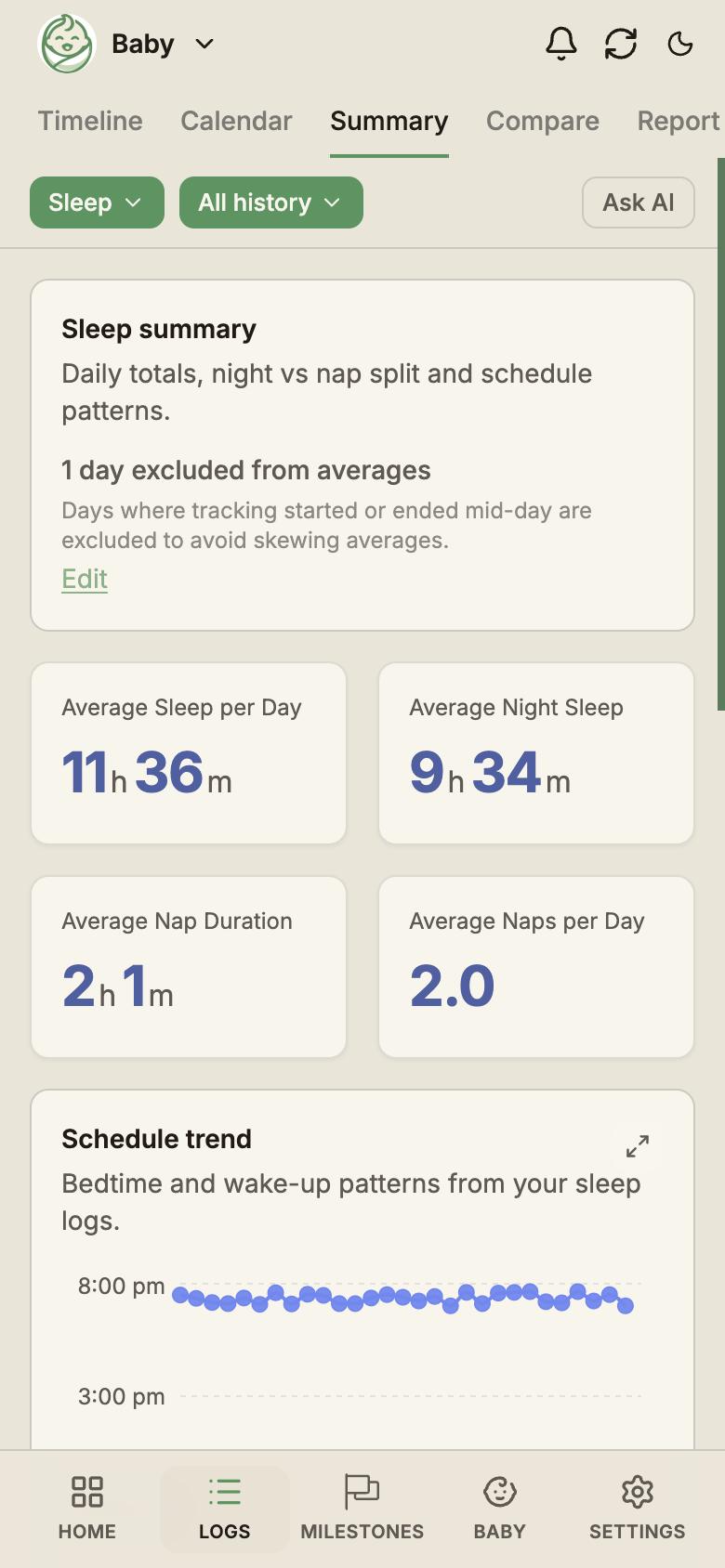
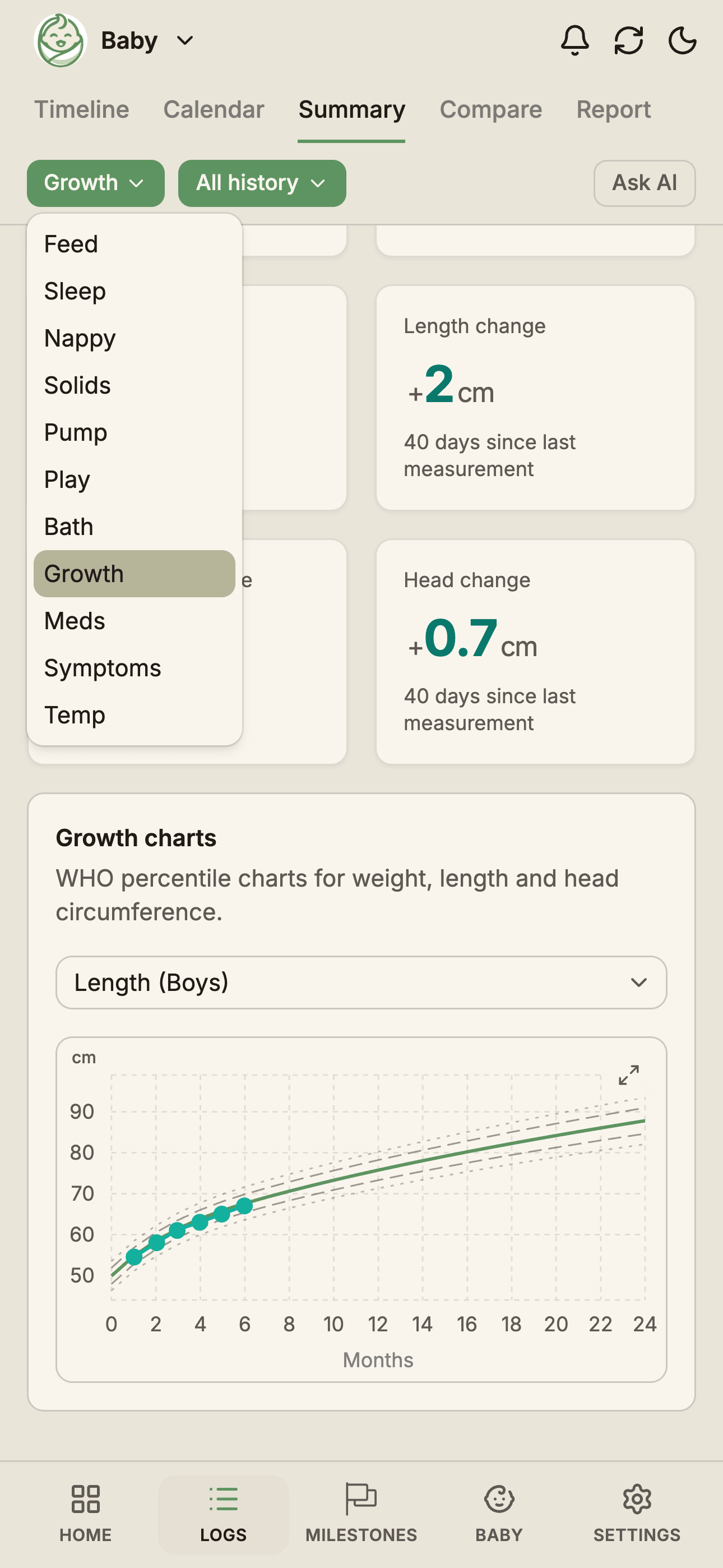
Charts and totals built from your log history. Every log type except notes has its own summary card.
What each summary shows
- Feed — daily ml, breast vs bottle split, feed count, per-day average
- Sleep — total hours, longest stretch, day vs night split with trends
- Nappy — count per day, wee vs poo, colour distribution, consistency mix
- Solids — meals per day, average per day, new foods introduced in the period
- Pumping — daily ml, session count, per-side balance
- Bath — count and timing
- Growth — weight, height, head circumference plotted vs WHO charts
- Play — minutes per day, play types
- Temperature — readings over time, with fever readings flagged
- Medication — doses per day grouped by medication
- Symptoms — counts by symptom and severity
Pick the date range at the top of the Summary page. Visual history goes back 14 days on Free; Pro unlocks the full history back to your baby's first log. Older entries always stay viewable and editable in the Data Table, whatever your plan.
Compare
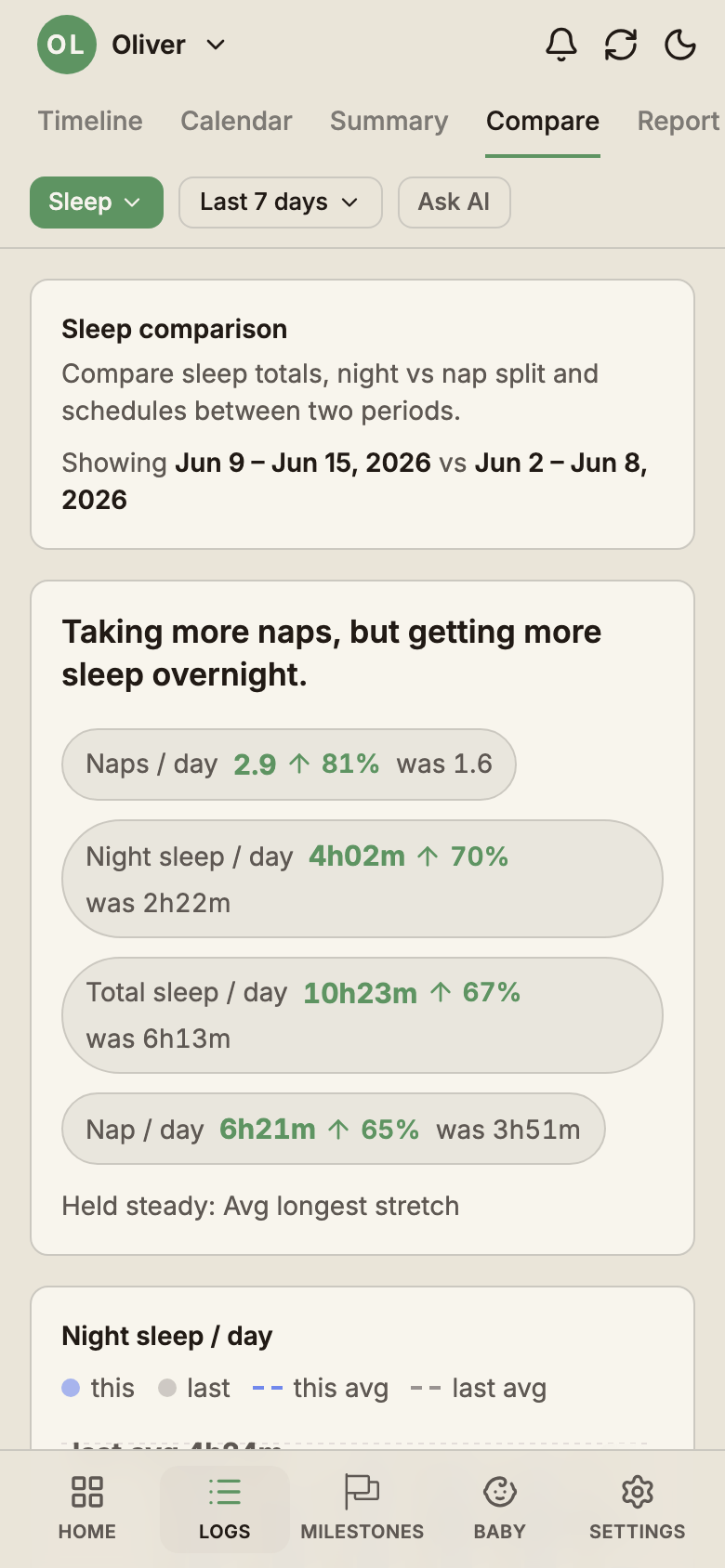
Compare puts two periods side-by-side and shows delta cards highlighting what changed. Everyone gets the core comparison — the last 14 days against the 14 days before. Pro unlocks the full period picker:
- Presets — today vs yesterday, and the last 3 · 7 · 14 · 30 · 60 · 180 · 365 days against the matching previous period
- By age — one month of your baby's age against another (month 2 vs month 3), so you can see how a rhythm has shifted as they've grown
- Custom ranges — any two date ranges you pick
Available for feed, sleep, nappy, solids, pumping, play, medication, temperature, and bath. Compare skips growth (it has its own charts) and notes by design; it answers numeric questions.
Filters & date range
Every view has a filter row at the top:
- Date range — presets from Today and Yesterday through the past 7 · 14 · 30 · 60 · 90 · 180 · 365 days to All history, plus a custom range
- Log type — all types, one type, or any combination
Each view keeps its own range picker tuned to what it does — the Timeline and Summary use the presets above, the Calendar scrolls through days directly, and Compare picks period pairs. The Ask AI button builds its privacy-first prompt from exactly the logs you've filtered into view.
Reorder and hide
Not every household uses every log type. Use the More options tile on Home — or Settings → Log Preferences — to drag-reorder Home tiles and hide the types you don't track — pumping for formula-fed families, solids for pre-weaning newborns. Hidden types stay in the data, just off the Home screen and the type-filter lists. See Customising Overview for the full how-to.