
Import & Export
Bring in CSV data from another tracker, resolve conflicts, and export your complete log history.
BabyLog imports and exports CSV, per baby. Bring data in from another tracker; take all of yours out whenever you want. No paywall on either direction.
Where to find it
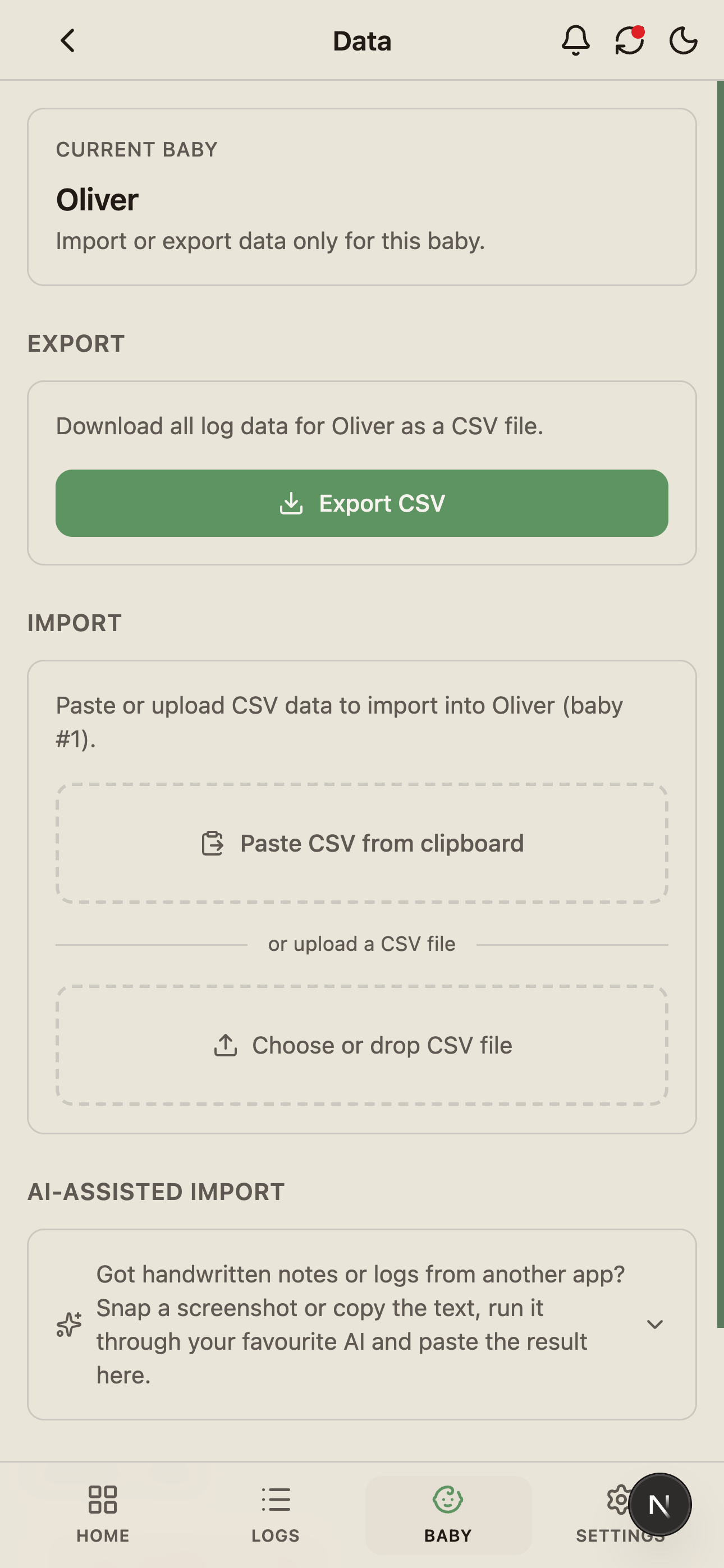
Open Baby → [Baby name] → Data. Everything import-and-export lives here. Owners and editors can use it; viewers can't — their access is read-only.
Per baby is deliberate — when you share with caregivers, each baby has its own data scope and its own access rules. The export for one baby never leaks logs from another.
Export
Tap Export CSV and BabyLog downloads a complete CSV of that baby's logs to your device.
What's included
- Every log entry across all 12 log types
- Start and end timestamps for every entry
- All values, units, and free-text notes
- A row ID for each entry, so re-importing your own export never creates duplicates
No fields are hidden behind Pro. The export is everything you can see in the app.
Use the export to
- Move to another tool (the format is simple enough to map elsewhere)
- Keep a long-term archive
- Send to your paediatrician as a structured handover
- Feed into a spreadsheet for custom analysis
Import
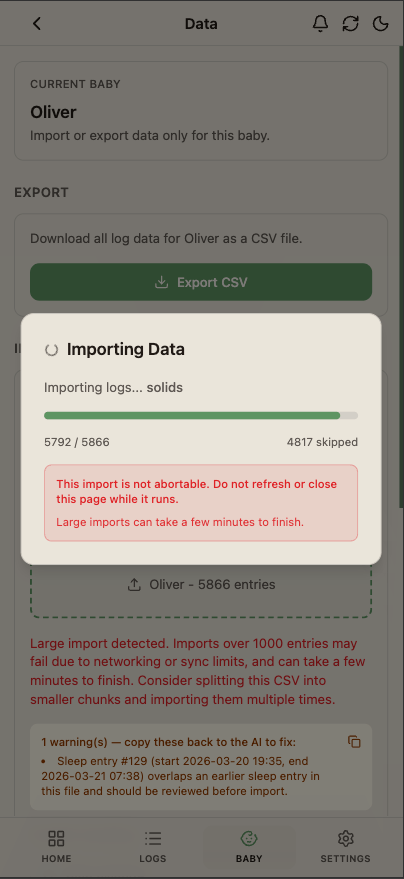
Two ways to bring data in:
- Upload a CSV file from your device.
- Paste CSV from your clipboard — useful when you've exported small batches from another app.
BabyLog parses the file, validates it, and shows you an interactive preview before anything is saved. The preview counts how many rows are new and how many clash with entries you already have, and for clashing rows you pick a policy: skip — keep what's already in BabyLog (the default) — or overwrite — let the CSV win.
You confirm. Then BabyLog runs the import, reporting progress as it goes.
Fixing rows that don't align
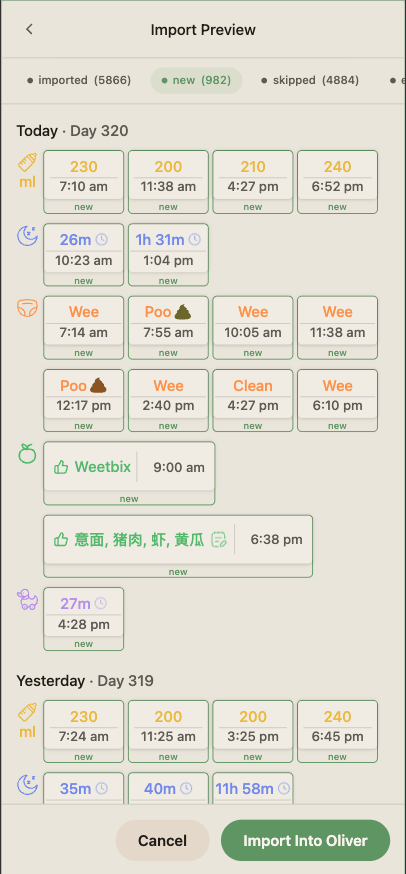
Some rows in your CSV won't slot in cleanly — a value that didn't parse, or a timestamp that clashes with an entry you already have. BabyLog surfaces these in the preview so they don't block the rest of the import.
Tap any row in the preview to open it. From there you have two choices, exactly like editing a normal log:
- Adjust the value — fix the field that didn't look right (e.g. correct a misformatted timestamp, change ml to a sensible amount) and save. The row stays in the batch.
- Delete the import entry — drop the row entirely. Useful when the source data was wrong.
Nothing is written until you confirm — rows you drop from the preview never touch your data.
Re-importing the same CSV file won't create duplicates. BabyLog's own exports carry a row ID that's matched on re-import, and two logs of the same type at the exact same time are treated as the same event — so rows that landed the first time are skipped on a re-run.
After the import
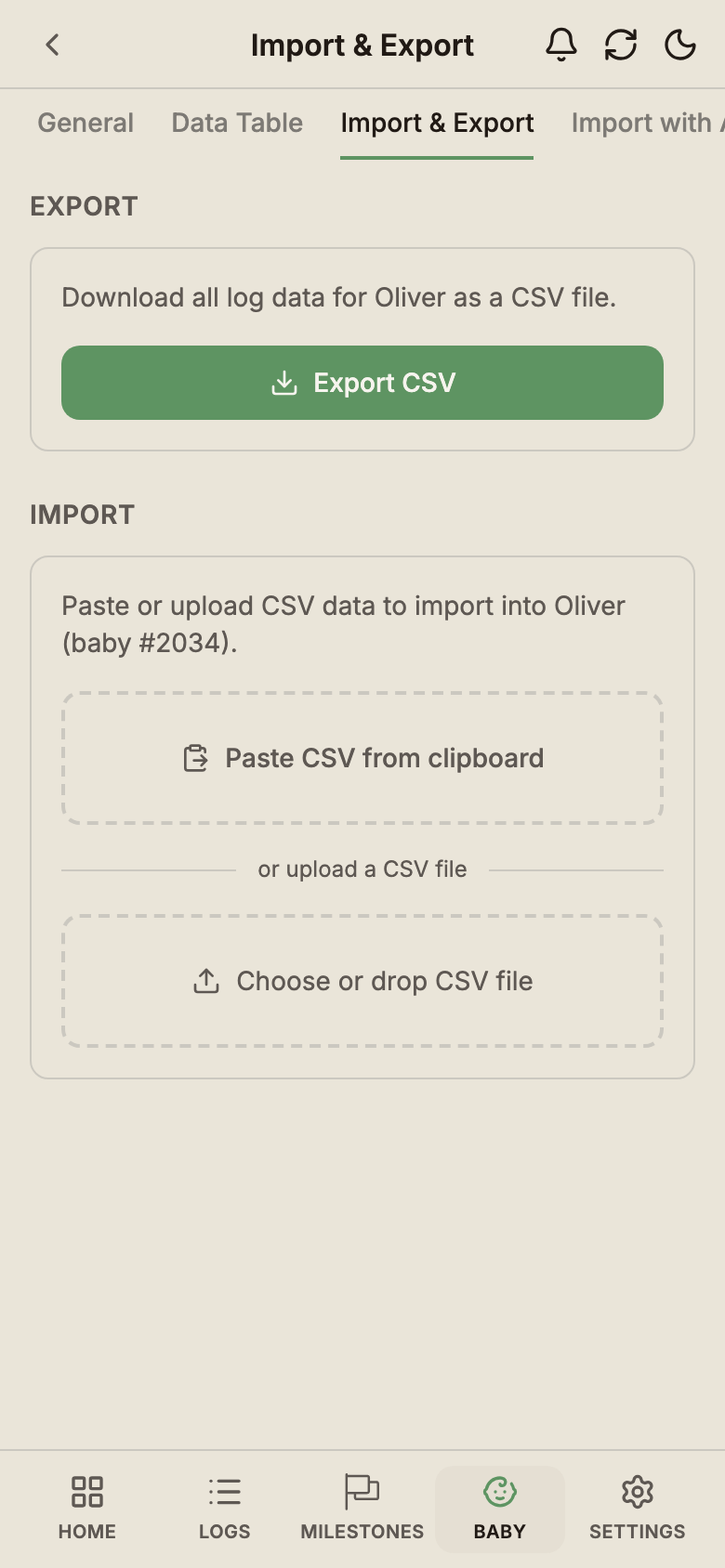
You get a summary — how many entries were imported and how many were skipped — with shortcuts to review the logs or import another file. The imported logs appear on Timeline, Calendar, and Summary instantly because the import runs through the same local-first pipeline as new logs you tap in by hand.
If a caregiver shares the baby, they'll receive the new logs the next time their app checks for changes.
Large imports
Importing months or years of data at once is supported. BabyLog chunks the work so the UI stays responsive, and warns you not to close the page while an import is running.
If the import is interrupted anyway, a recovery banner appears when you return, showing how many changes are still queued to sync — with a Sync Now button to push them through. Re-running the import from the same file is safe — duplicate detection skips what already landed.
CSV format and tips
The import expects one CSV per baby. The simplest path to get the column layout right:
- Export a small sample from BabyLog first.
- Use that as your template.
- Paste into a spreadsheet, replace with your real data, then re-import.
If you're coming from another tracker that exports a different shape, you can ask an AI tool to reformat the file — paste your source CSV and the BabyLog sample export into ChatGPT or Claude and ask it to reshape the columns to match. The Data page includes a ready-made AI prompt for exactly this, pre-filled with your baby's details.